# Firmware Update Troubleshooting

# Bootloader could not connect error

If you receive a **“Bootloader could not connect”** error when updating your device, follow the steps below.

[![image.png](https://bookstack.vps-da8d40f3.arunmicro.com/uploads/images/gallery/2026-09/scaled-1680-/PCBimage.png)](https://bookstack.vps-da8d40f3.arunmicro.com/uploads/images/gallery/2026-09/PCBimage.png)
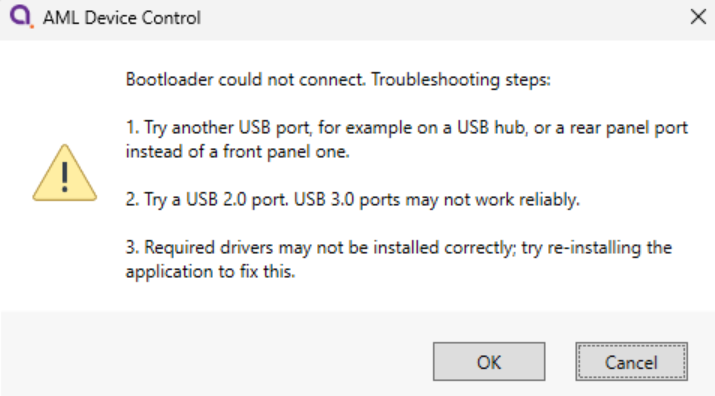
1\. Make sure the device is connected to a **USB 2.0 port**. There are known issues when updating via a USB 3.0 port, particularly with certain driver versions.

2\. Check your device has the correct drivers installed and selected. Leave the error message displayed, and open Device Manager. Look for a section called "Other devices". If you see one called "STM32 BOOTLOADER" or similar, with a yellow exclamation warning against it (as shown below), drivers are not correctly installed and configured.

[![image.png](https://bookstack.vps-da8d40f3.arunmicro.com/uploads/images/gallery/2026-09/scaled-1680-/bSmimage.png)](https://bookstack.vps-da8d40f3.arunmicro.com/uploads/images/gallery/2026-09/bSmimage.png)
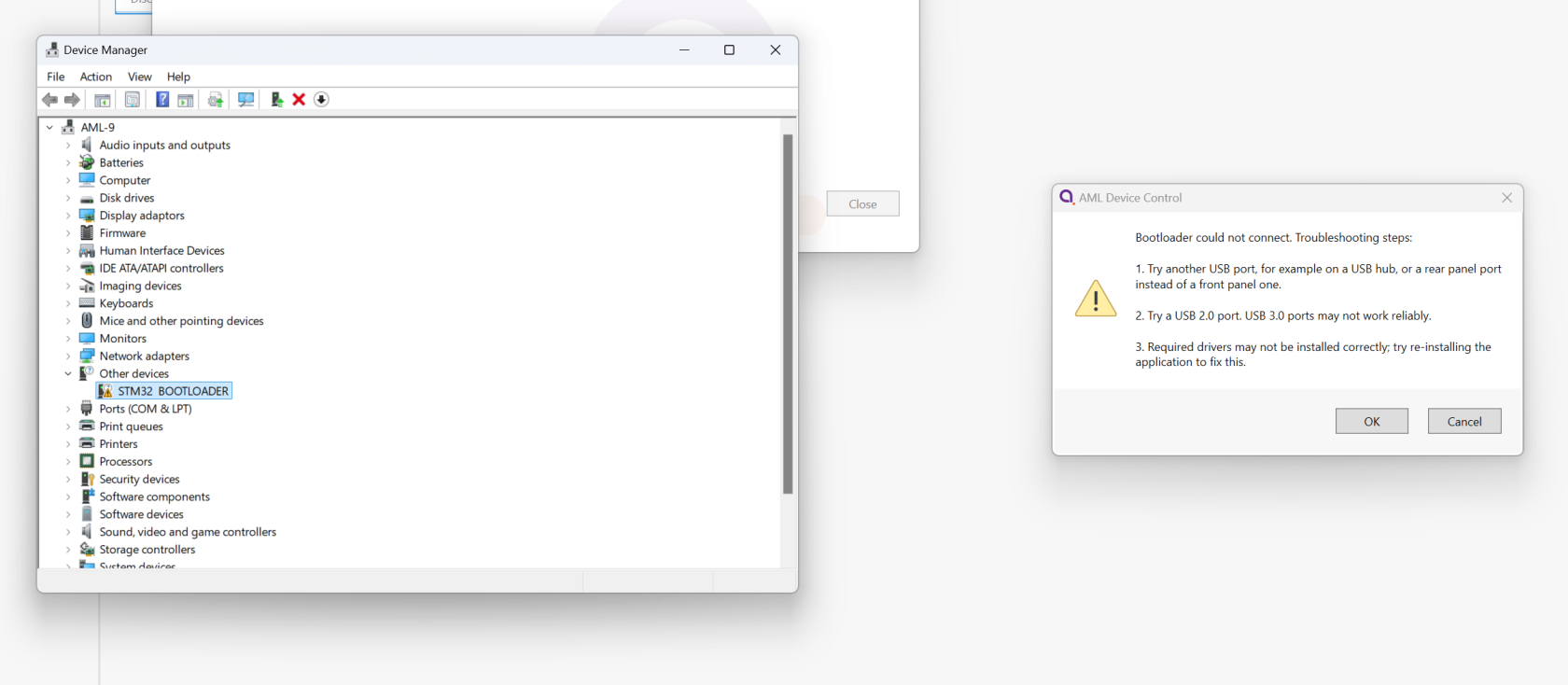
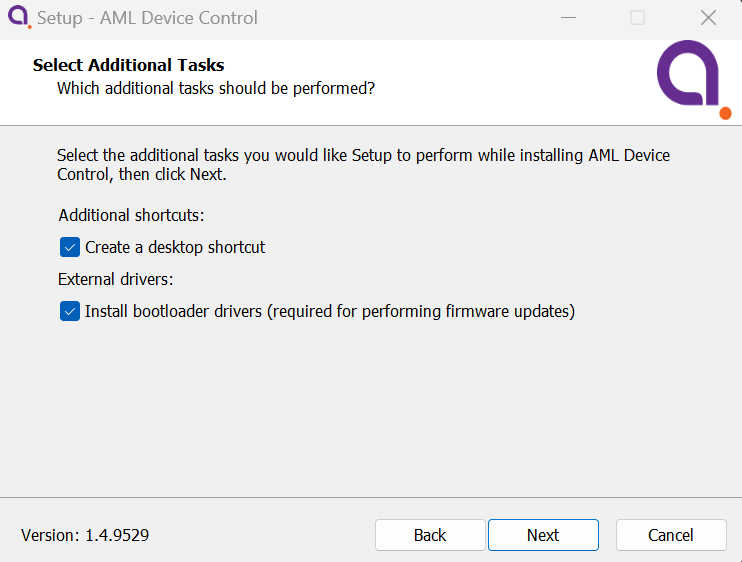
The easiest way to fix this is to reinstall the Device Control software, ensuring that<span style="font-family:'DejaVu Sans', '-apple-system', BlinkMacSystemFont, 'Segoe UI', Oxygen, Ubuntu, Roboto, Cantarell, 'Fira Sans', 'Droid Sans', 'Helvetica Neue', sans-serif;font-size:14px;"> the </span>**driver installation checkbox** <span style="font-family:'DejaVu Sans', '-apple-system', BlinkMacSystemFont, 'Segoe UI', Oxygen, Ubuntu, Roboto, Cantarell, 'Fira Sans', 'Droid Sans', 'Helvetica Neue', sans-serif;font-size:14px;">is selected:  
[![image.png](https://bookstack.vps-da8d40f3.arunmicro.com/uploads/images/gallery/2026-09/scaled-1680-/fIvimage.png)](https://bookstack.vps-da8d40f3.arunmicro.com/uploads/images/gallery/2026-09/fIvimage.png)  
After reinstalling the software, retry the firmware update process. If you still experience issues, the drivers may be installed correctly but it is possible an incorrect driver is selected for the device. Follow [these](https://bookstack.vps-da8d40f3.arunmicro.com/books/firmware-update-troubleshooting/page/wrong-driver-selected-error "Wrong driver selected") instructions to resolve. </span>

# Wrong driver selected error

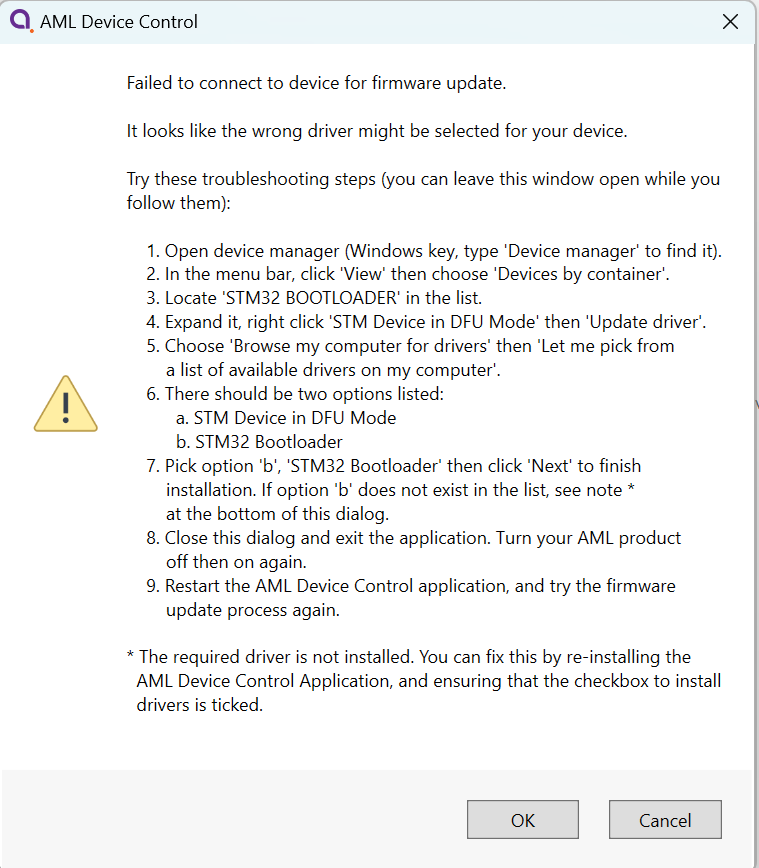
<span style="font-family:'DejaVu Sans', '-apple-system', BlinkMacSystemFont, 'Segoe UI', Oxygen, Ubuntu, Roboto, Cantarell, 'Fira Sans', 'Droid Sans', 'Helvetica Neue', sans-serif;font-size:14px;">If you receive a </span>**“Wrong driver selected”**<span style="font-family:'DejaVu Sans', '-apple-system', BlinkMacSystemFont, 'Segoe UI', Oxygen, Ubuntu, Roboto, Cantarell, 'Fira Sans', 'Droid Sans', 'Helvetica Neue', sans-serif;font-size:14px;"> error when updating your device, follow the steps below.</span>

[![image.png](https://bookstack.vps-da8d40f3.arunmicro.com/uploads/images/gallery/2026-09/scaled-1680-/DMlimage.png)](https://bookstack.vps-da8d40f3.arunmicro.com/uploads/images/gallery/2026-09/DMlimage.png)

Do not close the error message box until you have completed these steps. Once the box is closed, the device may exit bootloader mode which will prevent you from carrying out the remaining steps.

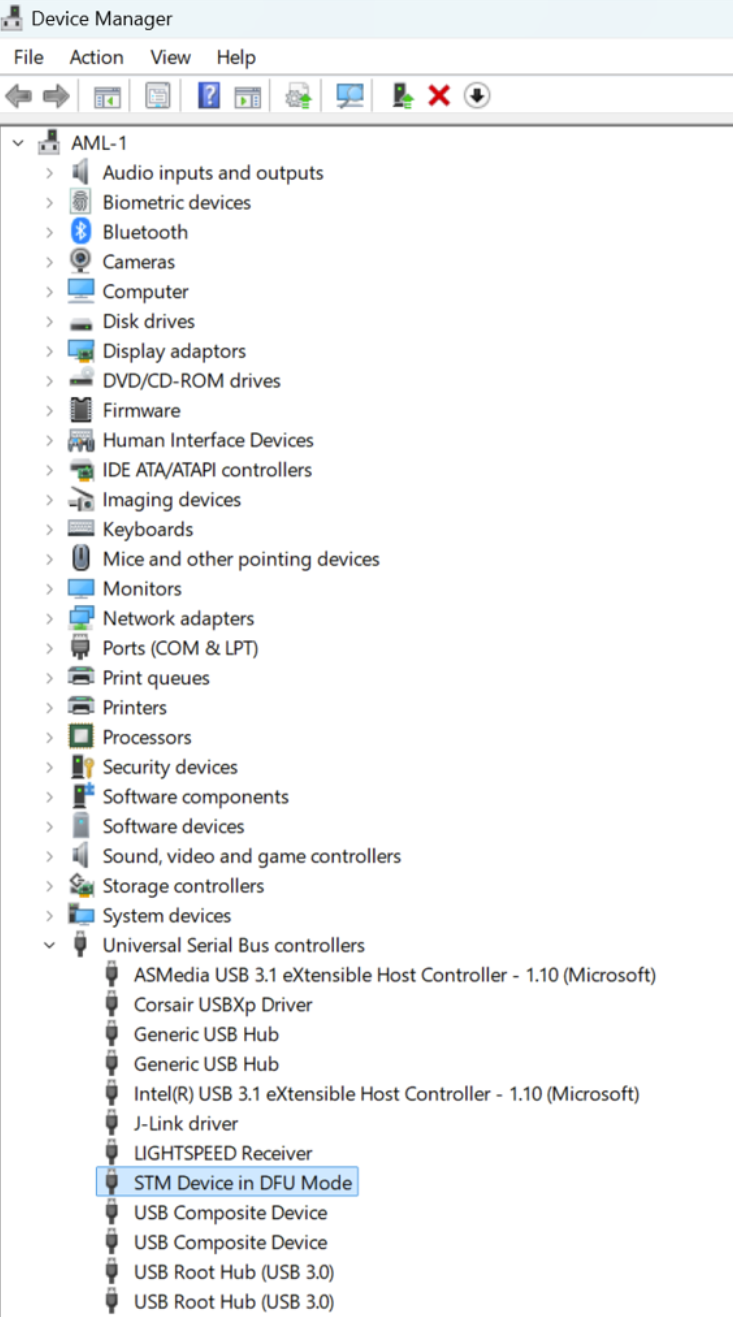
1. <span style="font-family:'DejaVu Sans', '-apple-system', BlinkMacSystemFont, 'Segoe UI', Oxygen, Ubuntu, Roboto, Cantarell, 'Fira Sans', 'Droid Sans', 'Helvetica Neue', sans-serif;font-size:14px;">Go to Device Manager and find the device. It will be listed as </span>**STM Device in DFU Mode**<span style="font-family:'DejaVu Sans', '-apple-system', BlinkMacSystemFont, 'Segoe UI', Oxygen, Ubuntu, Roboto, Cantarell, 'Fira Sans', 'Droid Sans', 'Helvetica Neue', sans-serif;font-size:14px;">.  
      
    </span>[![image.png](https://bookstack.vps-da8d40f3.arunmicro.com/uploads/images/gallery/2026-09/scaled-1680-/8tximage.png)](https://bookstack.vps-da8d40f3.arunmicro.com/uploads/images/gallery/2026-09/8tximage.png)
    
    <span style="font-family:'DejaVu Sans', '-apple-system', BlinkMacSystemFont, 'Segoe UI', Oxygen, Ubuntu, Roboto, Cantarell, 'Fira Sans', 'Droid Sans', 'Helvetica Neue', sans-serif;font-size:14px;">  
    </span>
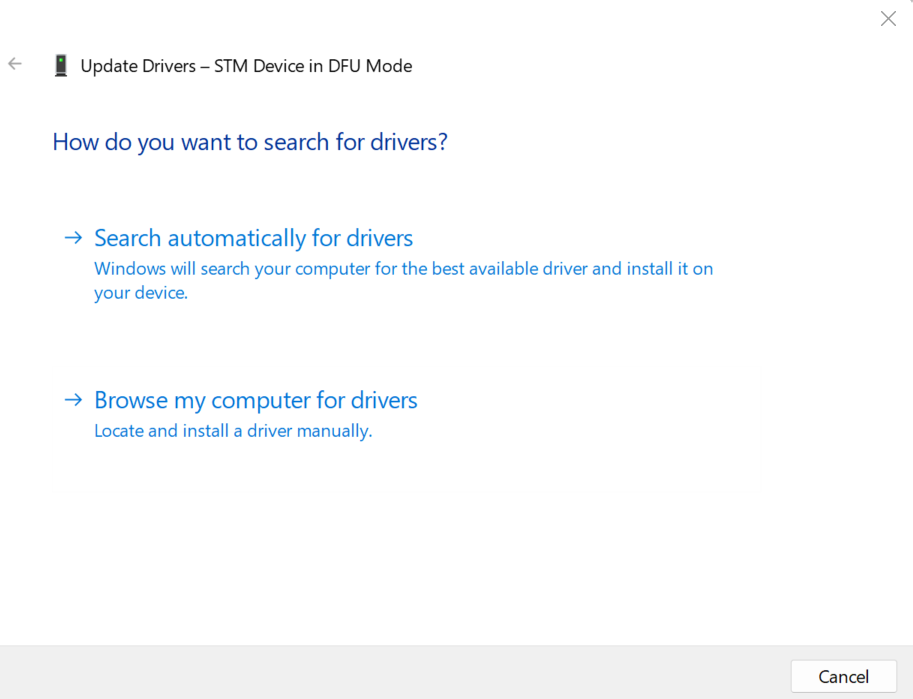
2. <span style="font-family:'DejaVu Sans', '-apple-system', BlinkMacSystemFont, 'Segoe UI', Oxygen, Ubuntu, Roboto, Cantarell, 'Fira Sans', 'Droid Sans', 'Helvetica Neue', sans-serif;font-size:14px;">Right-click on the device</span> <span style="font-family:'DejaVu Sans', '-apple-system', BlinkMacSystemFont, 'Segoe UI', Oxygen, Ubuntu, Roboto, Cantarell, 'Fira Sans', 'Droid Sans', 'Helvetica Neue', sans-serif;font-size:14px;">then go to </span><span style="font-family:'DejaVu Sans', '-apple-system', BlinkMacSystemFont, 'Segoe UI', Oxygen, Ubuntu, Roboto, Cantarell, 'Fira Sans', 'Droid Sans', 'Helvetica Neue', sans-serif;font-size:14px;"> </span>**properties** <span style="font-family:'DejaVu Sans', '-apple-system', BlinkMacSystemFont, 'Segoe UI', Oxygen, Ubuntu, Roboto, Cantarell, 'Fira Sans', 'Droid Sans', 'Helvetica Neue', sans-serif;font-size:14px;">&gt; </span>**update driver.  
    [![image.png](https://bookstack.vps-da8d40f3.arunmicro.com/uploads/images/gallery/2026-09/scaled-1680-/sv0image.png)](https://bookstack.vps-da8d40f3.arunmicro.com/uploads/images/gallery/2026-09/sv0image.png)**
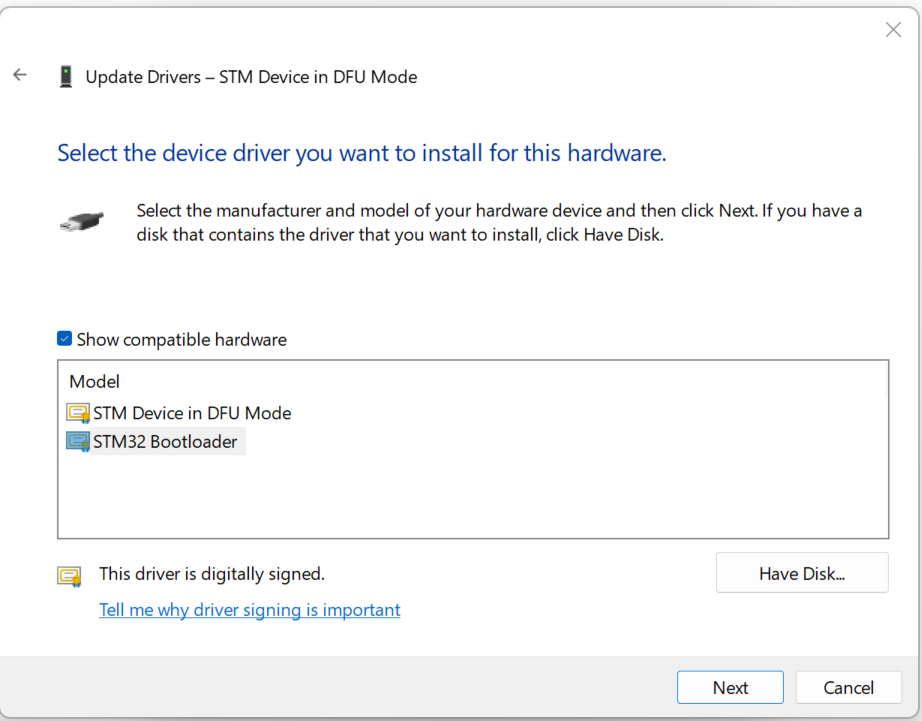
3. Select 'Browse my computer for drivers' &gt; 'Let me pick from a list available drivers on my computer'. Select **STM32 BOOTLOADER**<span style="font-family:'DejaVu Sans', '-apple-system', BlinkMacSystemFont, 'Segoe UI', Oxygen, Ubuntu, Roboto, Cantarell, 'Fira Sans', 'Droid Sans', 'Helvetica Neue', sans-serif;font-size:14px;"> and click next. Restart your device and Device Control software and try to update again.  
      
    [![image.png](https://bookstack.vps-da8d40f3.arunmicro.com/uploads/images/gallery/2026-09/scaled-1680-/baoimage.png)](https://bookstack.vps-da8d40f3.arunmicro.com/uploads/images/gallery/2026-09/baoimage.png)  
      
    </span>
4. It should now appear as a **STM32 BOOTLOADER** <span style="font-family:'DejaVu Sans', '-apple-system', BlinkMacSystemFont, 'Segoe UI', Oxygen, Ubuntu, Roboto, Cantarell, 'Fira Sans', 'Droid Sans', 'Helvetica Neue', sans-serif;font-size:14px;">device while the update is in progress.  
      
    [![image.png](https://bookstack.vps-da8d40f3.arunmicro.com/uploads/images/gallery/2026-09/scaled-1680-/Mzlimage.png)](https://bookstack.vps-da8d40f3.arunmicro.com/uploads/images/gallery/2026-09/Mzlimage.png)</span>