Updating SMD3 or SMD4 firmware outside of AML Device Control Software
Instructions for manually updating SMD3 or SMD4 firmware when doing so through device control is not possible.
Procedure
Background
If a firmware initiated in AML device control goes wrong, it may not be possible to recover using AML Device Control software. Use this procedure to manually update the firmware.
0. Install software tools and prepare firmware
- Download the STM32 cube programmer tool from https://www.st.com/en/development-tools/stm32cubeprog.html picking the correct version for your computer from the list at the bottom of the page. Install the tool then open it.
- Download the firmware file image for your product. Visit this page https://arunmicro.com/downloads/product/ , find your product, then download the latest firmware image for it. For example, for SMD4, browse to 'SMD4/fw' then pick the latest revision. Firmware files are named 'yyddd.b' where 'yy' is the year, 'ddd' is a day number, and 'b' is a build number.
- Open STM32 cube programmer, click open file and choose the firmware image file you just downloaded


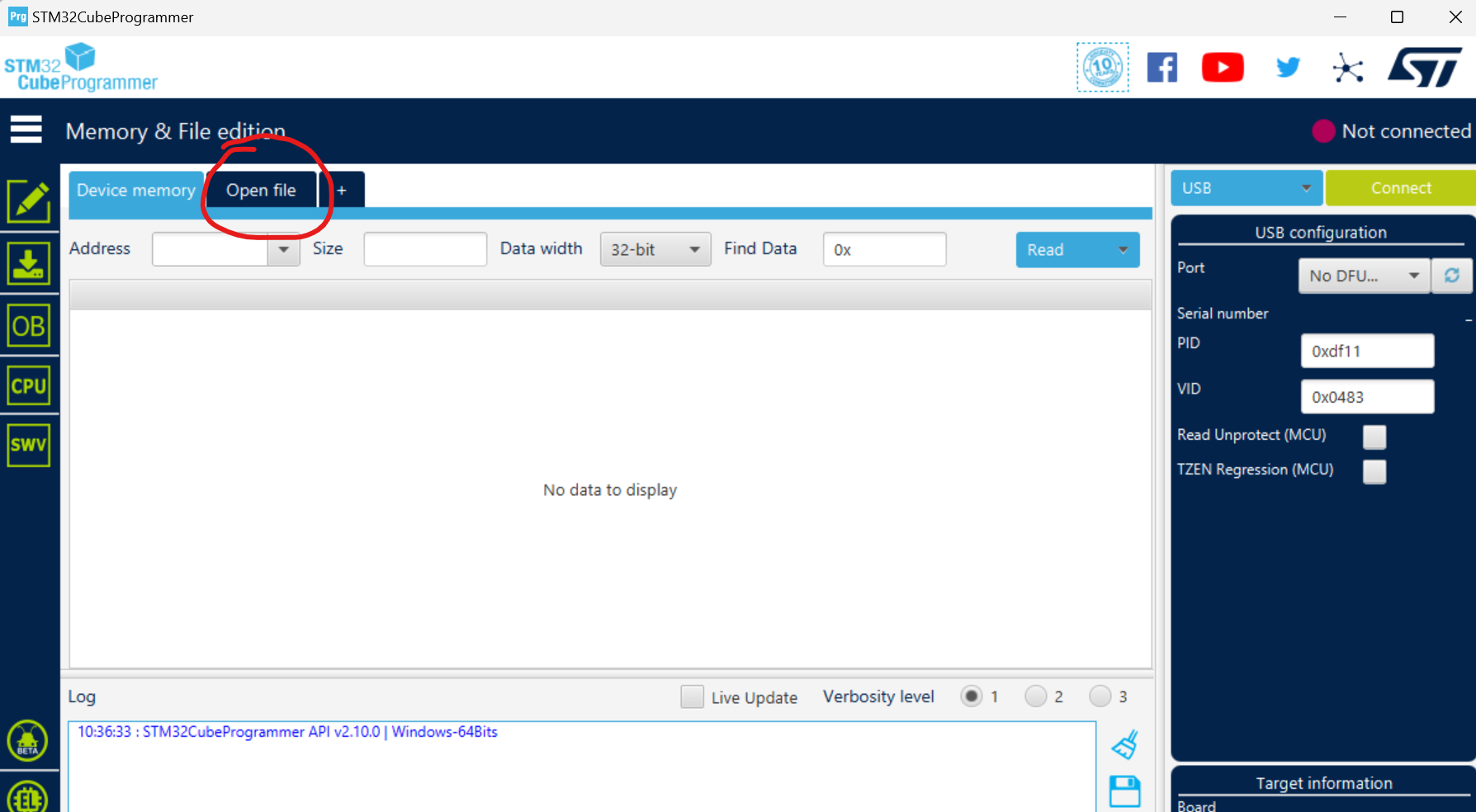
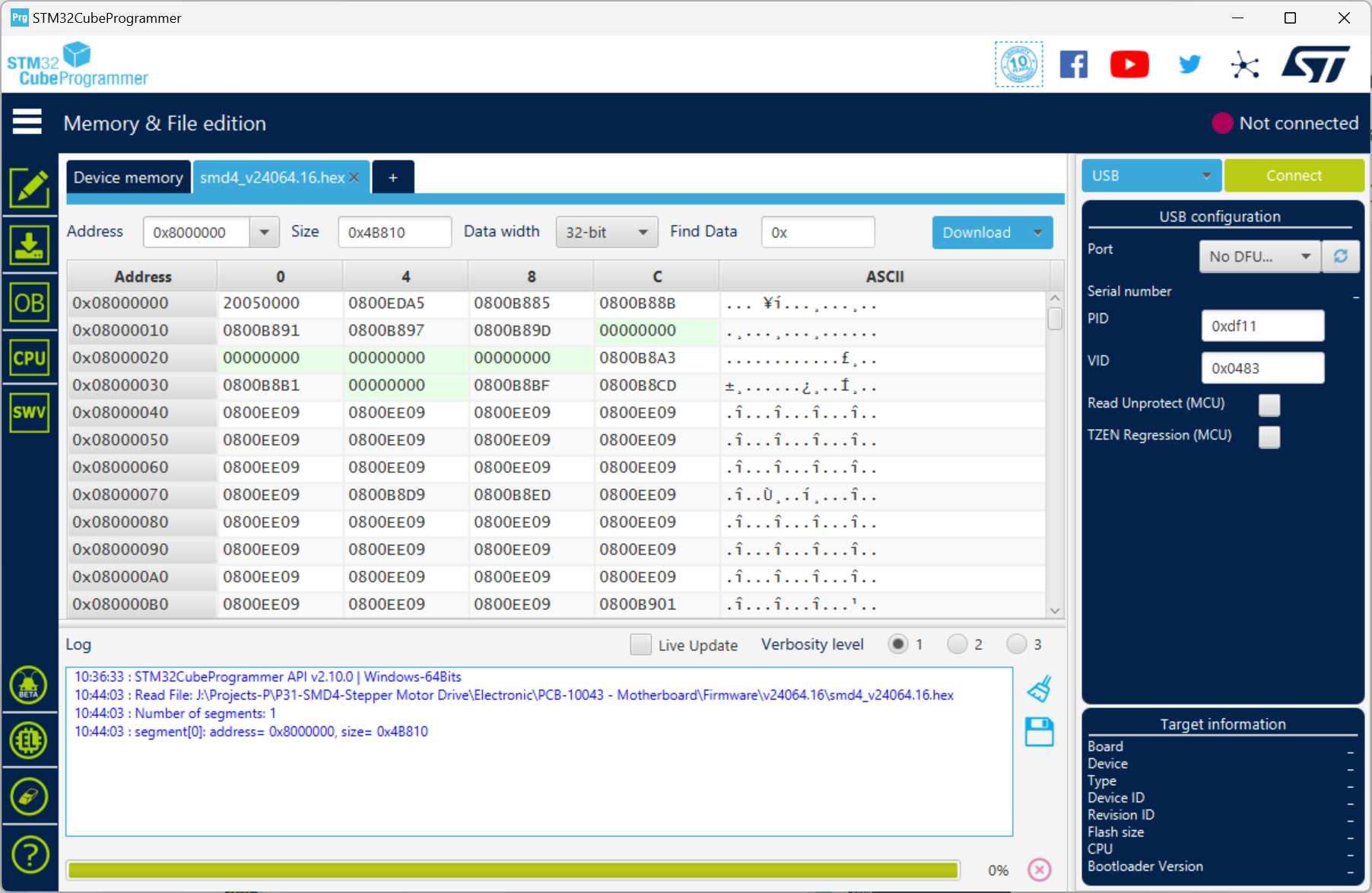
1. Configure the hardware
The hardware must be in bootloader mode to allow a firmware update. If your device is stuck in a broken state (no light indication on the device when powered on) follow the 'Broken State' instructions. If your device is operating normally and the firmware update fails via Device Control Software, follow the 'Working State' instructions.
1.1 Broken State
For SMD3:
- Unplug power lead from the device
- Remove the lid by unscrewing the 4 screws securing it
- Locate the boot jumper, marked "JP1" and unplug the black jumper

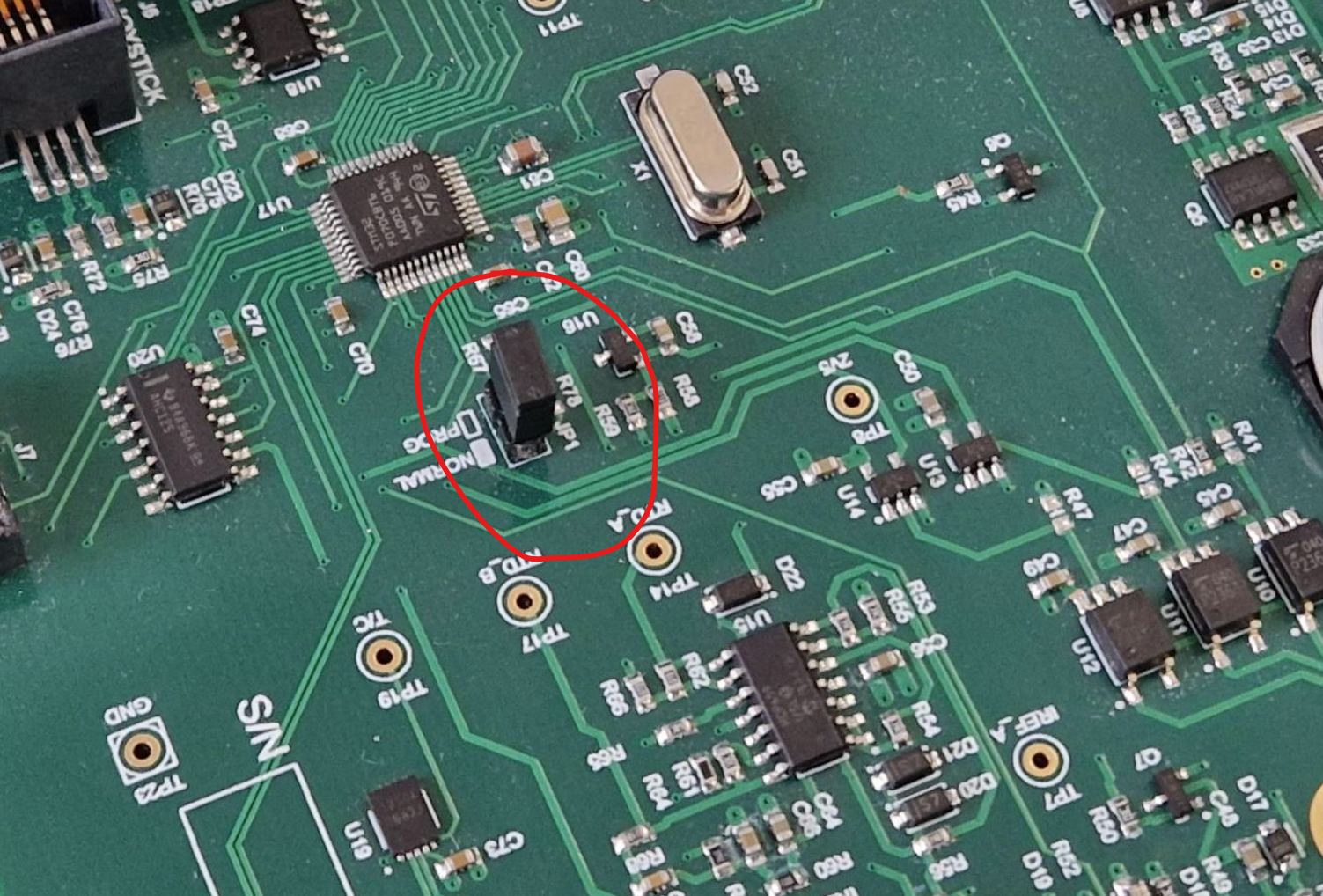
For SMD4:
- Unplug power lead from the device
- Unscrew the 4 screws securing the front panel, then remove it, then the front plastic bezel, and finally slide out the lid/top portion of the enclosure
- Locate the boot jumper pins, marked "JP2" and short them using a jumper plug.
If a jumper plug is not available, tweezers or small pliers can be used taking great care to only short the pins indicated. If using this method, note that the jumper only needs to be shorted during power up, not during the whole procedure.

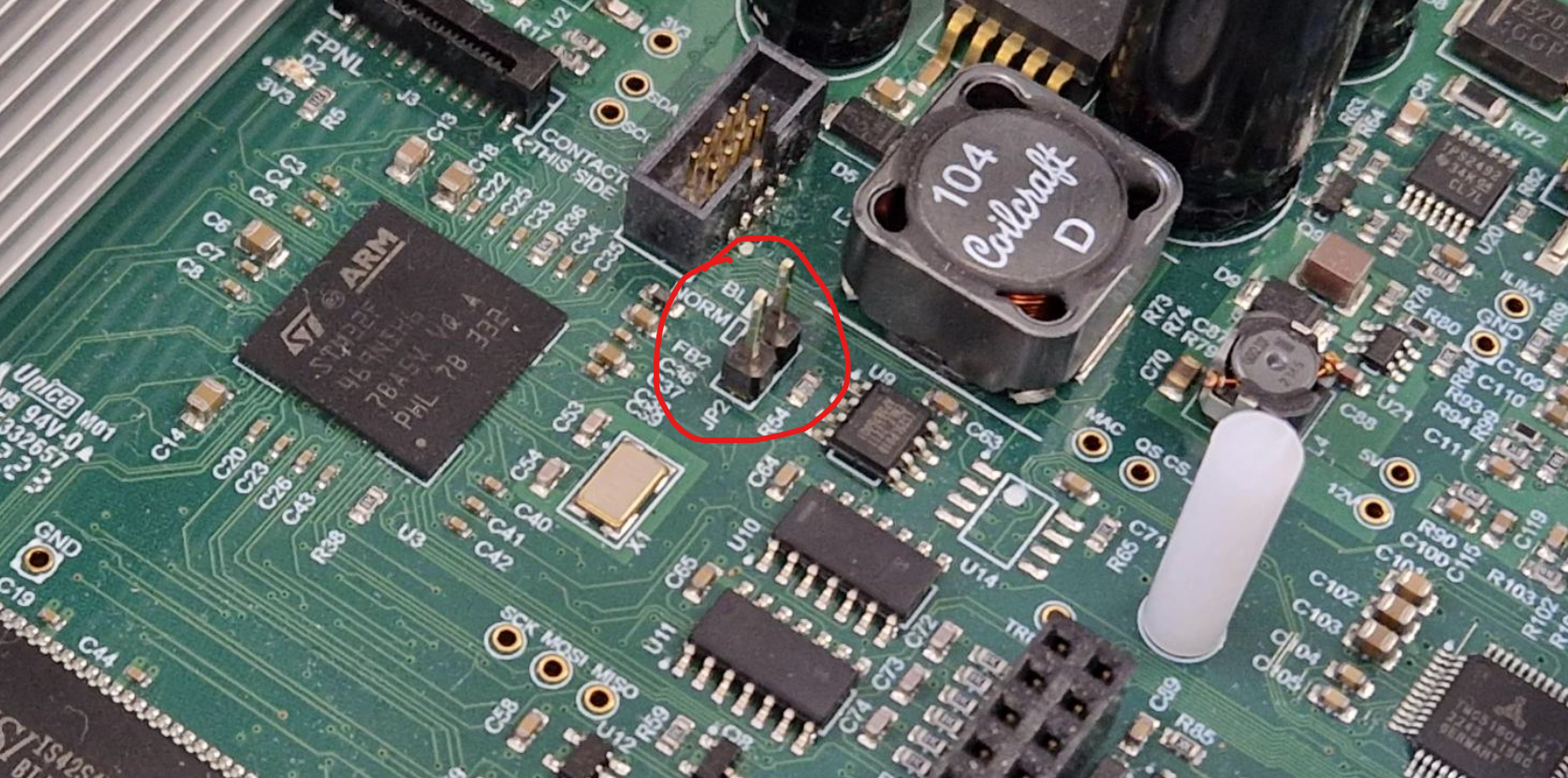
1.1.2 Power up the device
For SMD4:
- If using tweezers or pliers to short the boot jumper, do so now
Then
- Plug in power lead and power up device
- For SMD4, remove the boot jumper, or stop shorting the boot pins. For SMD3 plug the boot jumper back in again.
1.2 Working State
For SMD4:
Send the command SYS:PROG via text protocol, more information on the command can be found on this page, alongside how the text protocol works: Communications protocol | AML Documents Library.
For SMD3:
Send the command PROG via text protocol, more information on how the text protocol works can be found here: USB interface | AML Documents Library
2. Update the firmware
In STM32 Cube programmer software you opened earlier:
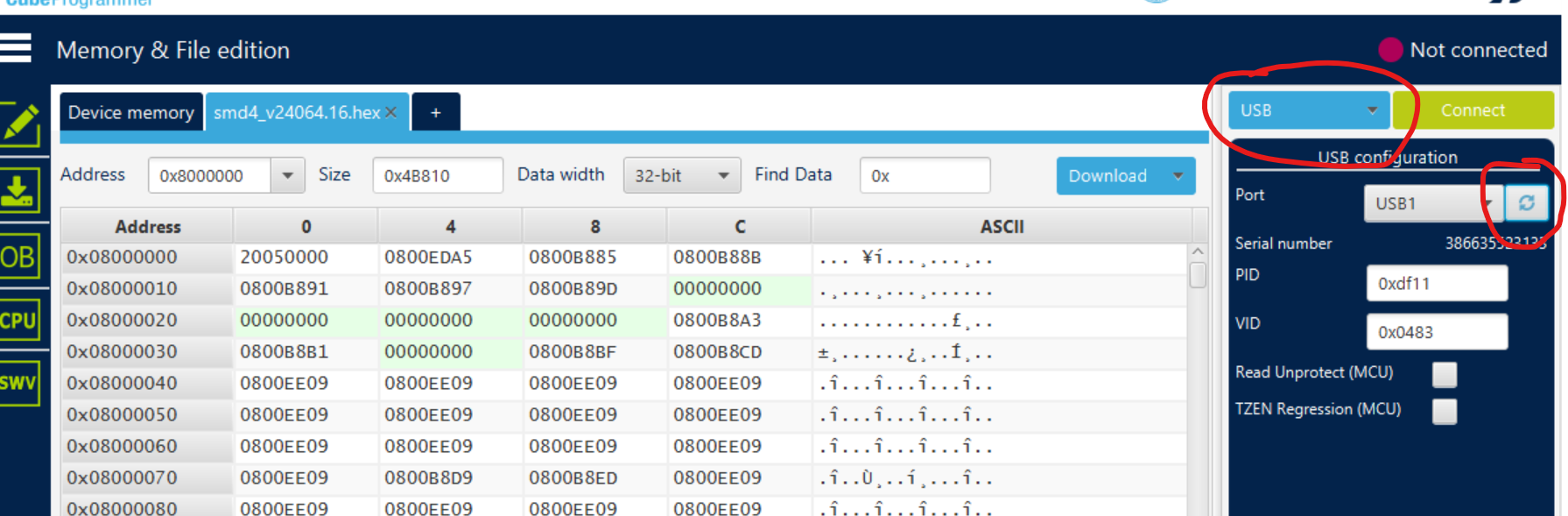
- On the right hand side, choose port 'USB' then click the refresh button. The port field will then read 'USB1' for example, and the 'Serial number' field will populate. Note this serial number will not match your product serial number. Do not change any other settings from their default values.

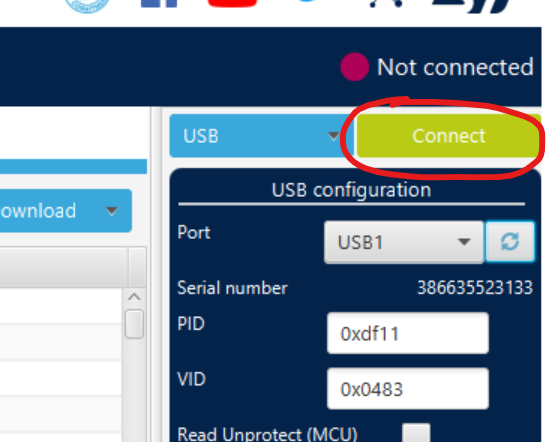
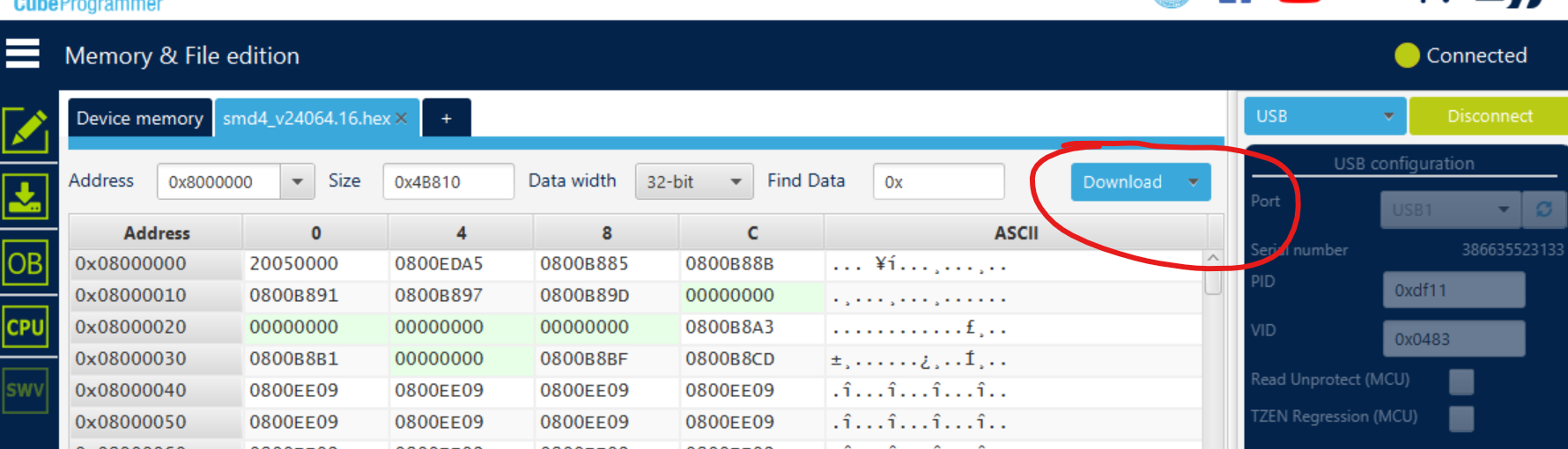
- Finally, click connect, then download


-
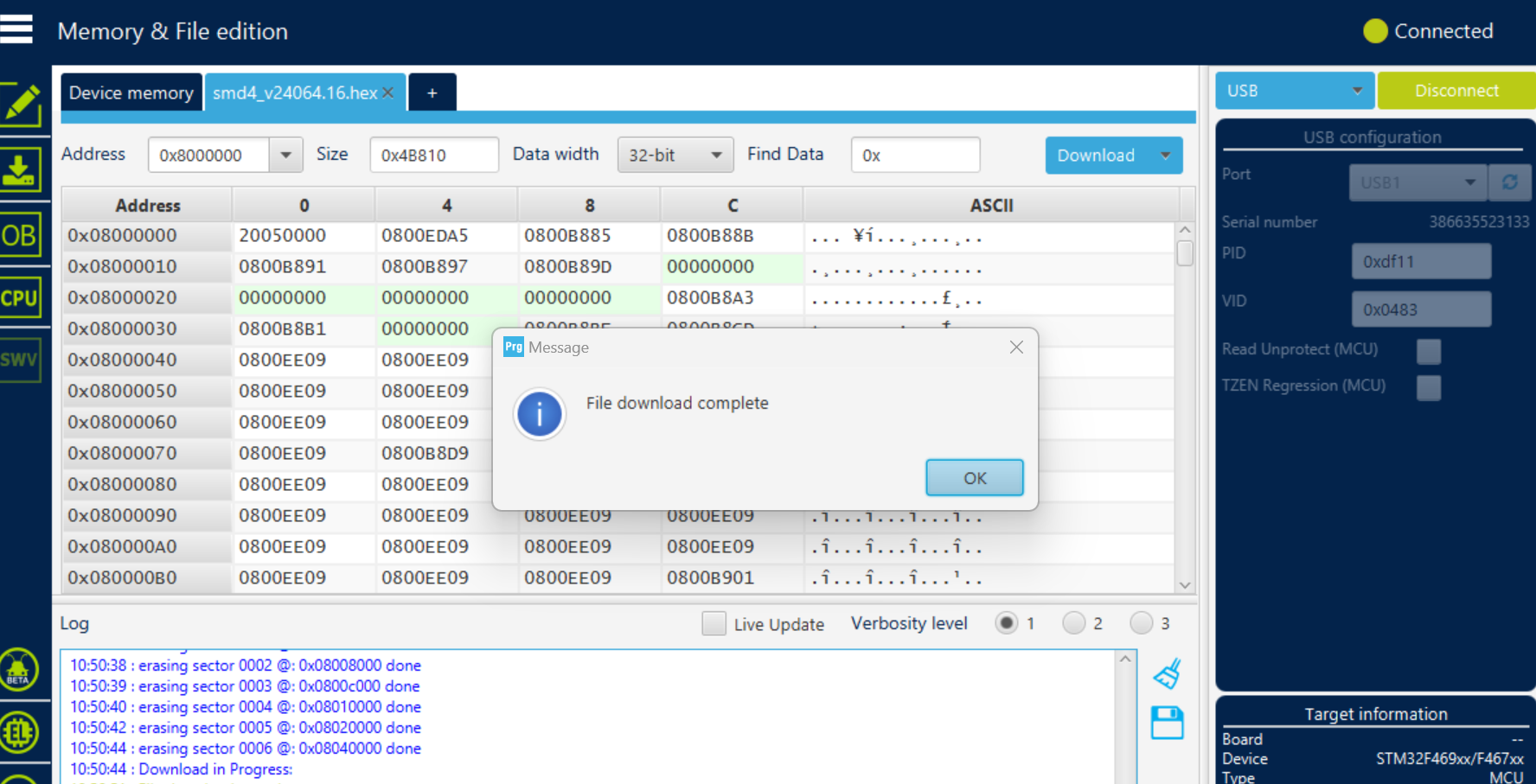
After a while, the process should complete, then click OK to finish

- Finally, power cycle the device. It should then boot up as normal, with the new firmware installed.
Troubleshooting
- Device does not boot up again after firmware update completes
- Is the boot jumper fitment correct? For SMD4, the boot jumper must be removed to boot normally, for the SMD3 it must be fitted
- Did you download the right firmware image file?