# Instructions

### 1. Download the latest copy of the API DLL for your product

Visit the product page for your product and look for the C# API download, for example for the SMD4, visit the link below, and look for the downloads tab at the bottom of the page. [https://arunmicro.com/products/smd4-stepper-motor-drive/](https://arunmicro.com/products/smd4-stepper-motor-drive/)

### 2. Install workloads for Visual Studio

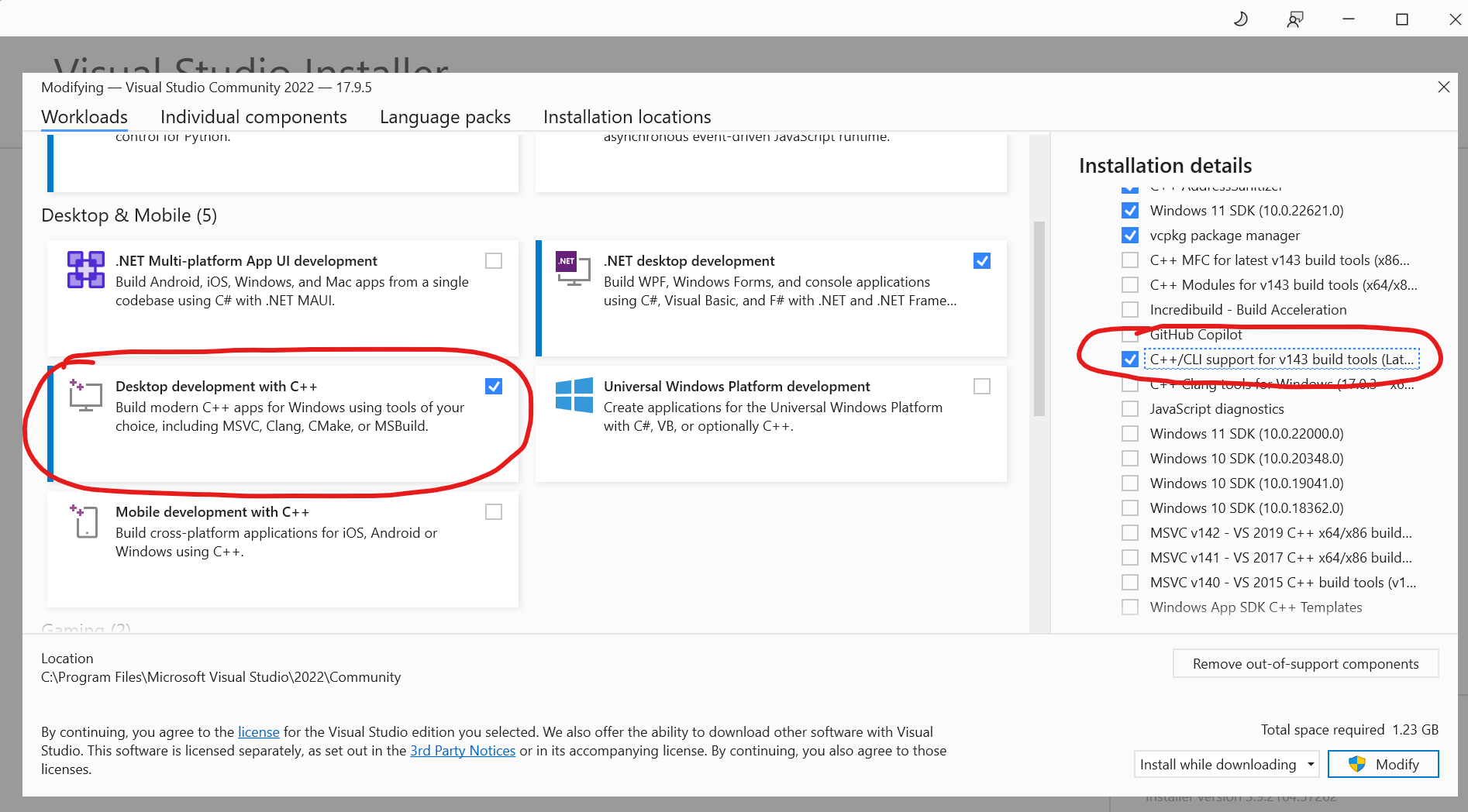
<span class="TextRun SCXW36869124 BCX8" data-contrast="auto" lang="EN-GB" xml:lang="EN-GB"><span class="NormalTextRun SCXW36869124 BCX8"><span class="EOP SCXW36869124 BCX8" data-ccp-props="{}">To install a workload, or check what is installed, open Visual Studio and go to 'Tools &gt; Get Tools and Features...'</span></span></span>

<span class="TextRun SCXW36869124 BCX8" data-contrast="auto" lang="EN-GB" xml:lang="EN-GB"><span class="NormalTextRun SCXW36869124 BCX8"><span class="EOP SCXW36869124 BCX8" data-ccp-props="{}">Install the following workloads:</span></span></span>

<div class="SCXW36869124 BCX8" id="bkmrk-.net-desktop-develop"><div class="ListContainerWrapper SCXW36869124 BCX8">- <span class="TextRun SCXW36869124 BCX8" data-contrast="auto" lang="EN-GB" xml:lang="EN-GB"><span class="NormalTextRun SCXW36869124 BCX8">.NET desktop development</span></span>
- <span class="TextRun SCXW36869124 BCX8" data-contrast="auto" lang="EN-GB" xml:lang="EN-GB"><span class="NormalTextRun SCXW36869124 BCX8">Desktop development with C++, with the default installation components PLUS the following:</span></span>
    
    
    - <span class="EOP SCXW36869124 BCX8" data-ccp-props="{}">C++/CLI support for v143 build tools</span>

</div></div><span class="EOP SCXW36869124 BCX8" data-ccp-props="{}">Use install or modify as required.</span>

[![image.png](https://bookstack.vps-da8d40f3.arunmicro.com/uploads/images/gallery/2024-10/scaled-1680-/image.png)](https://bookstack.vps-da8d40f3.arunmicro.com/uploads/images/gallery/2024-10/image.png)

### <span class="EOP SCXW36869124 BCX8" data-ccp-props="{}">3. Creating the project </span>

Start the new project wizard (File &gt; New &gt; Project). Choose one of the following, then proceed to create your project as normal.
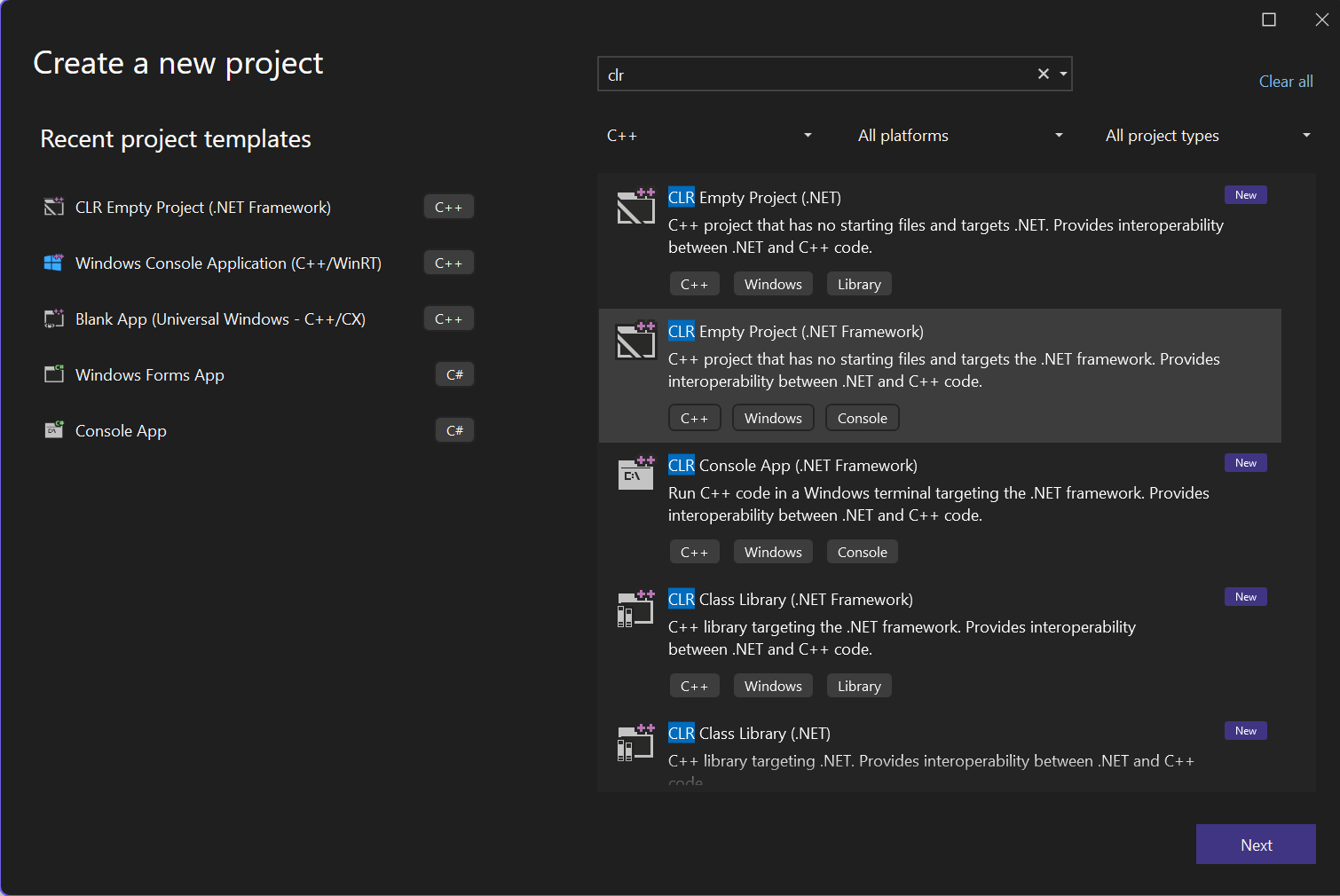
<div class="SCXW36869124 BCX8" id="bkmrk-clr-empty-project-%28."><div class="ListContainerWrapper SCXW36869124 BCX8">- <span class="TextRun SCXW36869124 BCX8" data-contrast="auto" lang="EN-GB" xml:lang="EN-GB"><span class="NormalTextRun SCXW36869124 BCX8">CLR Empty Project (.NET Framework)</span></span>
- <span class="TextRun SCXW36869124 BCX8" data-contrast="auto" lang="EN-GB" xml:lang="EN-GB"><span class="NormalTextRun SCXW36869124 BCX8">CLR Console </span><span class="NormalTextRun ContextualSpellingAndGrammarErrorV2Themed SCXW36869124 BCX8">App(</span><span class="NormalTextRun SCXW36869124 BCX8">.NET Framework)</span></span><span class="EOP SCXW36869124 BCX8" data-ccp-props="{}"> </span>

</div></div><span class="SCXW36869124 BCX8"><span class="WACImageContainer NoPadding DragDrop BlobObject SCXW36869124 BCX8" role="presentation">![A screenshot of a computer program

Description automatically generated](https://bookstack.vps-da8d40f3.arunmicro.com/uploads/images/gallery/2024-10/embedded-image-atfu7pzu.png)</span></span>

### 4. Referencing the API DLL file

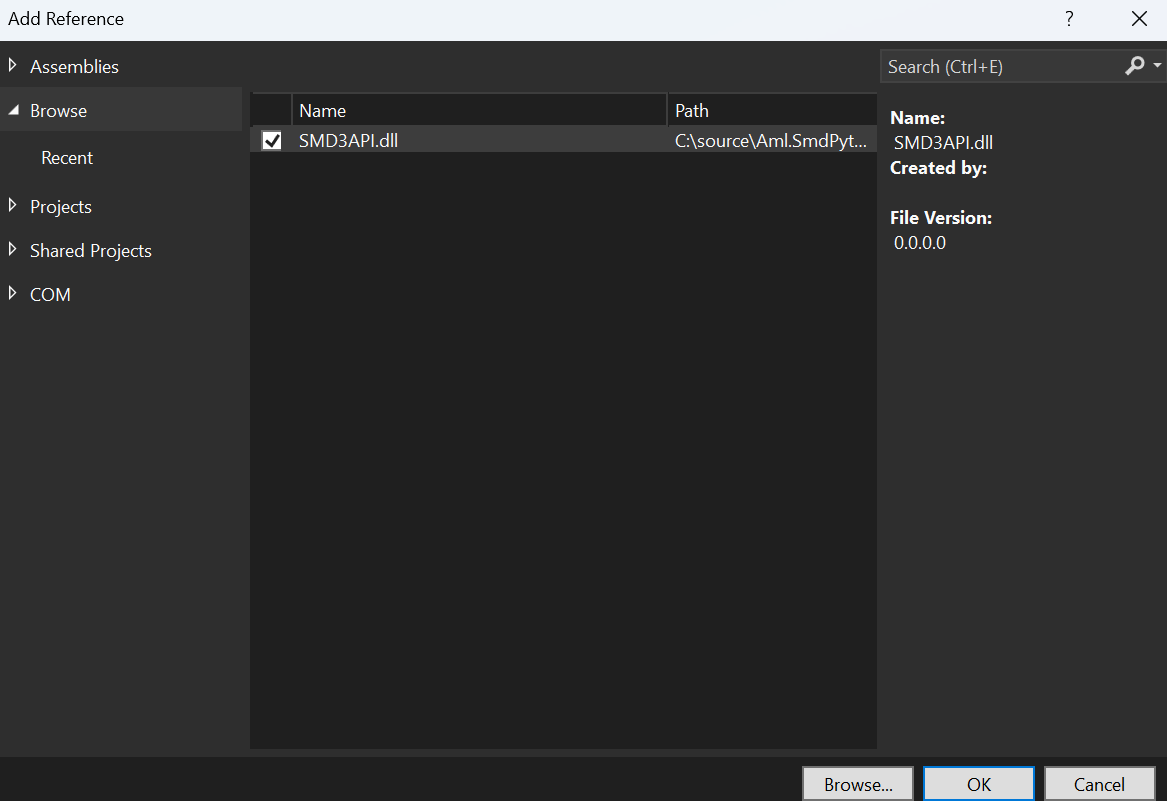
<span class="TextRun SCXW258286020 BCX8" data-contrast="auto" lang="EN-GB" xml:lang="EN-GB"><span class="NormalTextRun SCXW258286020 BCX8">The API DLL file needs to be referenced in your project. To do this go to:</span></span>

- <span class="TextRun SCXW258286020 BCX8" data-contrast="auto" lang="EN-GB" xml:lang="EN-GB"><span class="NormalTextRun SCXW258286020 BCX8">Solution Explorer</span></span>
- <span class="TextRun SCXW258286020 BCX8" data-contrast="auto" lang="EN-GB" xml:lang="EN-GB"><span class="NormalTextRun SCXW258286020 BCX8">Right click on the project, Add &gt; Reference… </span></span>
- <span class="NormalTextRun SCXW258286020 BCX8">Choose ‘browse’ and select the DLL file you downloaded previously (example below shows SMD3 API)</span>

<span class="NormalTextRun SCXW258286020 BCX8">Finally, click OK and the DLL will be added as a reference to your project.</span>
<span class="SCXW258286020 BCX8"><span class="WACImageContainer NoPadding DragDrop BlobObject SCXW258286020 BCX8" role="presentation">![A screenshot of a computer

Description automatically generated](https://bookstack.vps-da8d40f3.arunmicro.com/uploads/images/gallery/2024-10/embedded-image-yhtibj4d.png)</span></span><span class="EOP SCXW258286020 BCX8" data-ccp-props="{}"> </span>

### <span class="EOP SCXW258286020 BCX8" data-ccp-props="{}">5. Using the API</span>

<span class="EOP SCXW258286020 BCX8" data-ccp-props="{}">Example code (main.cpp), demonstrating connecting and moving the motor.</span>

```c++
#include <windows.h>
#include <iostream>
#include <msclr/marshal_cppstd.h> // Include for string conversion

// Include CLR headers
#include <vcclr.h>
#pragma comment(lib, "mscoree.lib")

// Import the mscorlib library
#import "C:\\Windows\\Microsoft.NET\\Framework\\v4.0.30319\\mscorlib.tlb" raw_interfaces_only \
    high_property_prefixes("_get","_put","_putref") \
    rename("ReportEvent", "InteropServices_ReportEvent")

using namespace System;
using namespace msclr::interop; // Namespace for string conversion


// Main function to use the DLL in a native C++ application
int main() {
    try {
        // Create a instance of the class SMD3 from SMD3API namespace in the dll
        auto smd3 = gcnew SMD3API::SMD3();
        
        // Connect the SMD3 on COM3
        smd3->Connect("COM3 TEXT");

        // Start motor spinning clockwise
        smd3->MoveVelocity("+");        

        // Wait for user before stopping motor
        std::cout << "Press Enter to stop motor" << std::endl;
        std::cin.get(); 
        smd3->Stop();
    }
    catch (Exception^ ex) {
        // Convert System::String^ to std::string
        std::string errorMessage = marshal_as<std::string>(ex->Message);
        std::cerr << "Exception: " << errorMessage << std::endl;
    }
    return 0;
}
```