Firmware Update Troubleshooting
Bootloader could not connect error.
If you receive a “Bootloader could not connect” error when updating your device, follow the steps below.
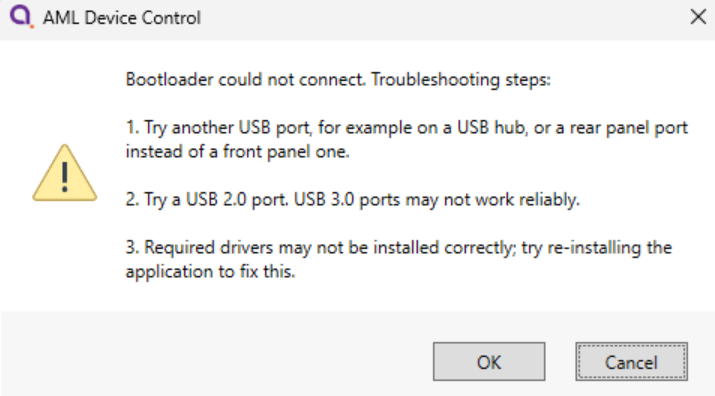
1. Make sure the device is connected to a USB 2.0 port.
There have previously been some unresolved issues with reliability when updating devicesvia througha USB 3.0 ports,port, particularly with certain driver versions.
2. Reinstall the Device Control software. This will also reinstall the drivers required to update the device.
During installation, make sure the driver installation checkbox is selected.
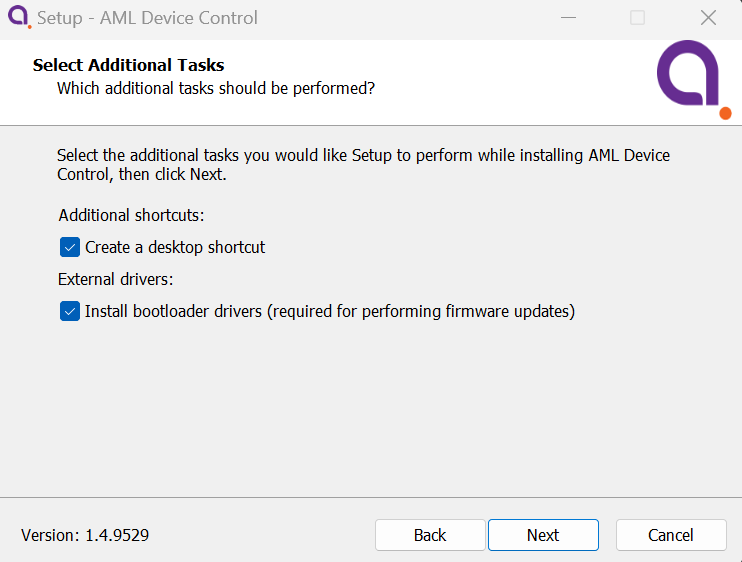
After reinstalling the software, try updatingretry the devicefirmware again.update process.
3. If reinstalling the software and drivers does not resolve the issue, start the firmware update again and stop when you reach the following message:
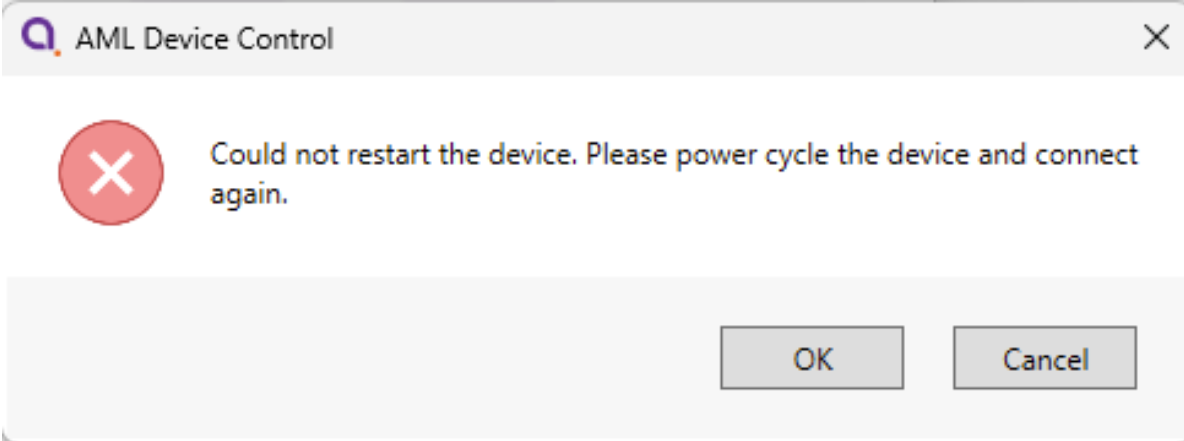
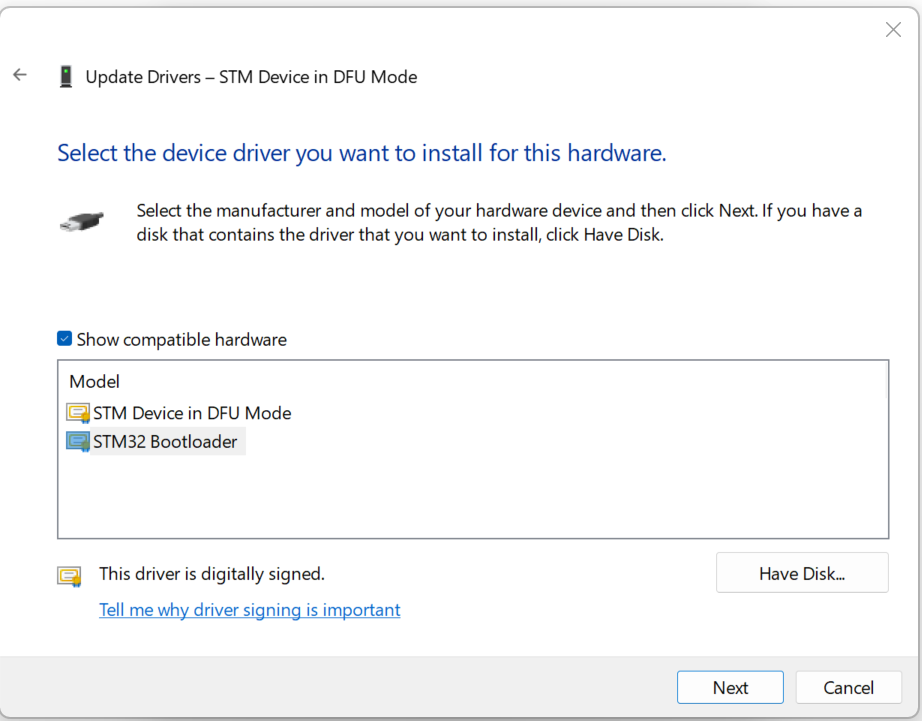
Then check if windows is selecting the correct drivers in device manager.
It should appear as a STM32 BOOTLOADER device.

If it doesn't appear with STM32 BOOTLOADER and appears with STM Device in DFU Mode,
Right-click on the device > properties > update driver.
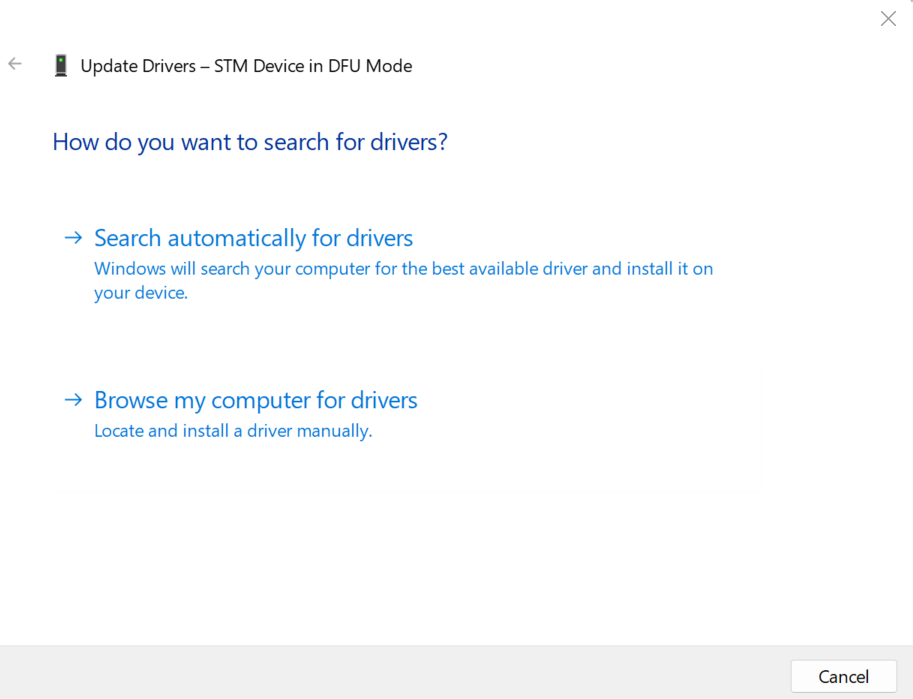
Select 'Browse my computer for drivers' > 'Let me pick from a list available drivers on my computer'. Select STM32 BOOTLOADER and click next. Restart your device and Device Control software and try to update again.