
Software
Installation and setup
copyThe SMD4 is compatible with the AML Device Control software, which can be downloaded from smd3the Software page on our website: https://arunmicro.com/documents/software/
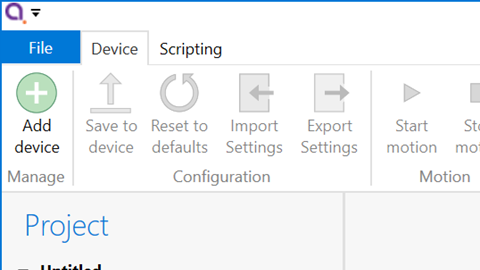
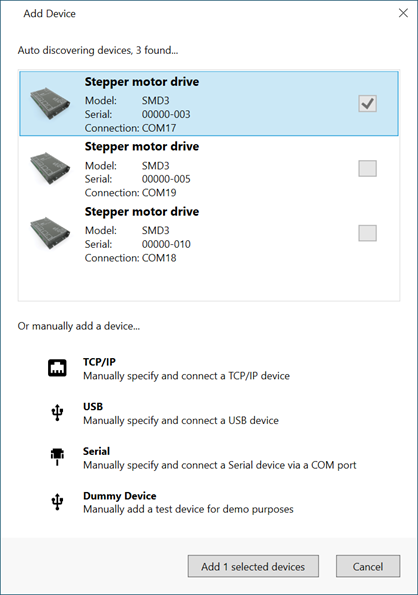
USB connected SMD4 devices should automatically appear in the list. Select all devices that you wish to add and click “Add n selected devices”
Overview
The default layout of the software is shown below.

Project panel
Shows a list of the devices and scripts in the project. Currently selected devices are highlighted. Multiple devices can be selected by holding down CTRL and clicking. The device properties panel shows the properties for the selected device(s).
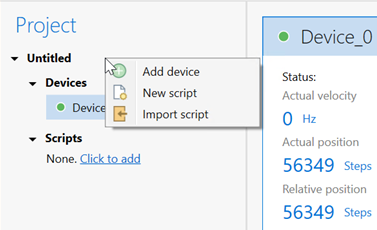
Right-clicking on an empty area within the project panel presents a context menu, with options to add new devices, new scripts or importing scripts.
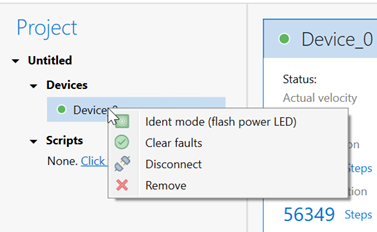
The right-click context menu on each device provides access to functions such as clearing faults or placing the selected device into ident mode in which the green status indicator flashes.
A status indicator next to each device shows the current status of each device according to these colours:
Colour
Description

Device connected and ready

Bake mode running, limit switch triggered or joystick connected

Device in a fault state

Device disconnected
Device properties panel
Select one or more devices in the project panel; their properties are displayed and can be edited here. A blank is shown for properties which are different across the selected devices. As each property is selected, help text appears at the bottom of the panel describing the configuration option in more detail.
Some properties allow selection of one of several choices, for example, temperature sensor selection:

Others such as ‘Run current’ simply require a numeric value to be entered
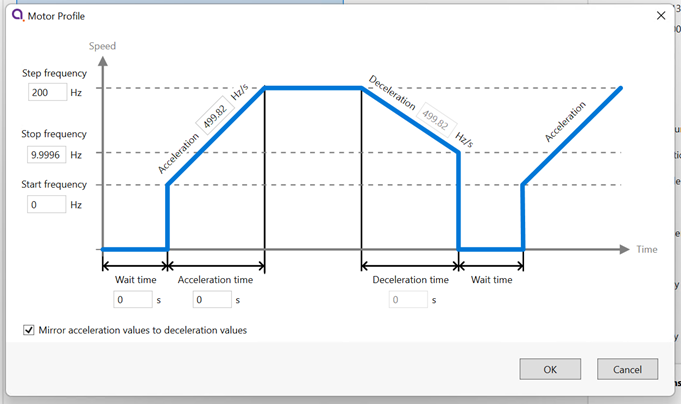
Others allow values to be entered directly, or the three dots button to the right to be clicked. This opens a window, allowing a more complex value to be input, for example, ‘Acceleration’ allows input in the native units or seconds:
System work area
Controller windows for each device appear in this area. Windows can be arranged as desired and will automatically ‘snap’ to a grid making it easy to keep them neatly organised.
Controller window
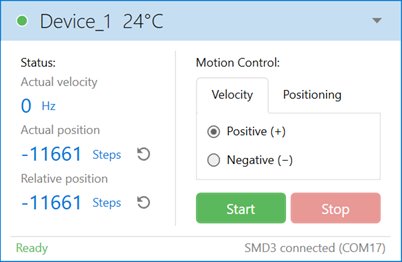
Shows a status summary for the selected device, providing essential information such as actual velocity, actual (absolute) position, relative position and error status.
Absolute and relative position counters may be reset using the  icons.
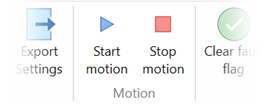
For controlling an SMD4, choose the type of motion and click start or stop. Multiple SMD4 devices can be controlled using the motion controls on the ribbon:
INFORMATION: Be aware that the synchronisation between multiple SMD4s is not specified or guaranteed when controlling them in this way; delays within the computer, software, and USB connection to the SMD4 mean that each SMD4 will start or stop its motion at a slightly different moment, therefore this option is not suitable for performing complex co-ordinated movements across multiple axes.
Ribbon
Contains buttons for all actions. Within the software, buttons can be hovered over for more information.

Saving projects
If the serial number of a connected SMD4 matches that of one in the project file that is open: The configuration given in the project file prevails, and the SMD4 configuration is synchronised to match that in the project file. Note that unless you use the save changes to hardware function, the original configuration of the SMD4 is not overwritten, and will be restored on power cycle or by using the load command to restore the configuration from flash.
If the serial number of a connected SMD4 does not match any of those in the project file that is open: The SMD4 is considered a new device in the project, and the project file will be initialised from the configuration found in the SMD4 itself. After this point, the first behaviour outlined above applies.
INFORMATION: In the first case above, configuration items that require the SMD4 to be in standby will not be correctly synchronized if the SMD4 is not in standby when the software connects.
Scripting
The software includes an easy to use script editor, that allows for sequences to be programmed and executed on multiple connected SMD4 devices, as well as system level operations such as adding and removing SMD4 devices from the project.
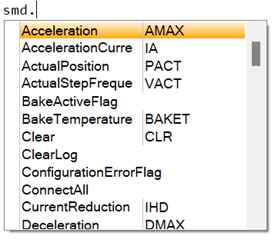
The scripting language used is JavaScript; this is powerful, easy to use and extensively documented. A global ‘smd’ object is made available from which you perform all interactions with the SMD4s. Type ‘smd.’ and an auto completion popup appears, showing all available commands, as well as help documentation for each. Press the enter key to select an option, then provide any arguments required.
A brief description of each function/command is presented below the scripting section. Here is an overview of the scripting area:
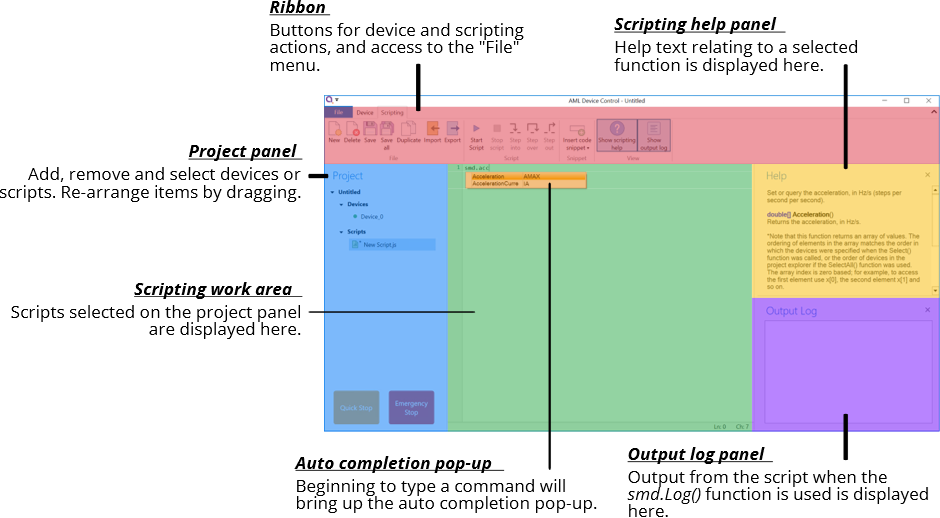
The auto completion popup can be shown using the ‘Ctrl-K’ keyboard shortcut.
Information on the available SMD4 device specific commands can be found in section USB Interface of this manual. Serial command mnemonics will be auto completed by the script editor. The arguments of each scripting function are identical to those shown in section Command Reference, however, the format of querying and commanding is different. The example below shows how the SMD4 mode can be set and queried:
smd.Mode(2);
smd.Mode();
// Set the SMD4 mode to 2 (remote)
// Query state of mode
The ribbon contains scripting specific buttons.

Function specific to the SMD4 software
Function
Description
Add
bool Add(string serial)
Add a new device to the project.
Returns true if the device has been detected and added to the project.
serial:
Device serial number.
ClearLog
void ClearLog( )
Clear command line.
ConnectAll
void ConnectAll( )
Connect all devices in the project.
Delayms
void Delayms(int value)
Delay in milliseconds.
value:
Minimum: 0
Maximum: 2^31 -1
DelaySeconds
void DelaySeconds(int value)
Delay in seconds.
value:
Minimum: 0
Maximum: 2147483
DisconnectAll
void DisconnectAll( )
Disconnect all devices in the project.
Log
void Log(string value)
Print value to the command line.
Name
bool Name(string serial, string name)
Change name of the device.
Returns true if the device has been found and name changed.
serial:
Device serial number.
name:
Device new name.
Remove
bool Remove(string serial)
Remove a device from the project.
Returns true if the device has been detected and removed from the project.
serial:
Device serial number.
RemoveAll
void RemoveAll( )
Remove all devices from the project.
Select
bool Select(string[ ] devices)
Returns true if all the requested devices have been selected.
devices:
Name of the device(s).
SelectAll
void SelectAll( )
Select all devices.
SelectNone
void SelectNone( )
Deselect all devices.
Functions that query the SMD4 and that are not also available as a serial command are listed below. Note that these all return an array rather than a single value, with each array element corresponding to the data from one SMD4. The order of the array elements corresponds to the order in which the SMD4 devices are selected. For example, suppose the “X-axis”, “Y-axis” and “Z-axis” named devices were selected with the command “smd.Select(“Z-axis”, ”X-axis”, ”Y-axis)”, to check the standby flag of the “X-axis” device, use MotorStandbyFlag()[1].
Function
Description
BakeActiveFlag
bool[] BakeActiveFlag()
Returns true if the bake mode is running.
ConfigurationErrorFlag
bool[] ConfigurationErrorFlag()
Returns true if the motor configuration is corrupt.
EmergencyStopFlag
bool[] EmergencyStopFlag()
Returns true if the motor is disabled by software.
ExternalEnableFlag
bool[] ExternalEnableFlag()
Returns true if the external enable input is high.
ExternalInhibitFlag
bool[] ExternalInhibitFlag()
Returns true if the external enable input is disabling the motor.
IdentModeActiveFlag
bool[] IdentModeActiveFlag()
Returns true if the ident mode is active.
JoystickConnectedFlag
bool[] JoystickConnectedFlag()
Returns true if the joystick is connected.
LimitNegativeFlag
bool[] LimitNegativeFlag()
Returns true if the negative limit is active.
LimitPositiveFlag
bool[] LimitPositiveFlag()
Returns true if the positive limit is active.
MotorOverTemperatureFlag
bool[] MotorOverTemperatureFlag()
Returns true if the motor temperature is greater than 190 °C.
MotorShortFlag
bool[] MotorShortFlag()
Returns true if a motor phase to phase or phase to ground short has been detected.
MotorStandbyFlag
bool[] MotorStandbyFlag()
Returns true if the motor is stationary.
TargetVelocityReachedFlag
bool[] TargetVelocityReachedFlag()
Returns true if the motor is at the target step frequency.
TemperatureSensorOpenFlag
bool[] TemperatureSensorOpenFlag()
Returns true if the selected temperature sensor is open circuit.
TemperatureSensorShortedFlag
bool[] TemperatureSensorShortedFlag()
Returns true if the selected temperature sensor is shorted (not applicable to thermocouple)